SEO Audit Checklist: Improve Website Performance and Google Rankings

SEO (Search Engine Optimization) helps websites rank higher on Google so people can easily find them. But having a website is not enough—it must be fast, well-structured, and optimized for search engines.

An SEO audit is like a health check-up for a website. It helps to:

  • Identify technical issues that prevent better rankings.
  • Fix problems that affect website speed and usability.
  • Improve content and keyword optimization to attract more visitors.
  • Ensure mobile-friendliness and security for a better user experience.

If a website is not optimized, it may lose traffic and potential customers without the owner realizing it. This step-by-step checklist will help identify and fix common SEO problems to improve search rankings.

1. Check If Google Can Crawl and Index Your Website

Google must crawl (scan) and index (store) your pages for them to appear in search results. If Google can’t access your content properly, your website will not rank.

How to check:

  • Use Google Search Console → “Coverage Report” to see indexed and excluded pages.
  • Check if any pages are blocked in the robots.txt file (which tells search engines which pages to crawl).
  • Look for “noindex” tags in your site’s code (these prevent pages from appearing in search results).

How to fix:

  • Remove “noindex” tags from important pages.
  • Submit an updated XML sitemap in Google Search Console.
  • Add internal links to connect all pages properly and help Google discover them.

2. Improve Website Speed and Loading Time

A slow website affects both user experience and search rankings. Google considers page speed a ranking factor because faster websites provide a better experience.

How to check:

  • Use Google PageSpeed Insights to analyze page load speed.
  • Check Google Lighthouse for detailed performance reports.
  • Use GTmetrix for speed and performance insights.

How to fix:

  • Compress images using tools like TinyPNG.
  • Enable browser caching to store common files for faster reloading.
  • Reduce unused JavaScript and CSS that slow down pages.
  • Use a Content Delivery Network (CDN) to distribute content globally and speed up load times.

3. Identify and Fix Broken Links and Errors

Broken links (404 errors) create bad user experiences and negatively impact SEO. Search engines may downgrade a site with too many broken links.

How to check:

  • Use Google Search Console → “Coverage Report” for error pages.
  • Run a crawl using Screaming Frog SEO Spider to detect broken links.
  • Check for redirect errors using Ahrefs or SEMrush.

How to fix:

  • Replace or remove broken links.
  • Use 301 redirects to guide visitors to the correct page.
  • Fix incorrectly configured redirect chains that slow down site navigation.

4. Analyze and Improve Content Quality

Content is a key ranking factor. If your content is outdated, low-quality, or lacks value, Google will rank your competitors higher.

How to check:

  • Use Google Analytics to find pages with high bounce rates.
  • Check Google Search Console for pages with low clicks and impressions.
  • Use Copyscape or Siteliner to find duplicate content.

How to fix:

  • Update outdated content with new information and statistics.
  • Ensure every page provides unique, helpful content tailored to the audience.
  • Use clear headings, structured paragraphs, and engaging visuals for better readability.
  • Optimize for featured snippets (answer-based searches) by structuring content clearly.

5. Ensure Mobile-Friendliness and Responsiveness

Over 60% of searches happen on mobile devices. Google uses mobile-first indexing, which means it ranks websites based on their mobile version.

How to check:

  • Use Google’s Mobile-Friendly Test.
  • Check how the website displays on different devices and screen sizes.
  • Test navigation, buttons, and form fields on a mobile device.

How to fix:

  • Use a responsive website design that adjusts to different screen sizes.
  • Ensure font sizes are readable and clickable elements are well-spaced.
  • Optimize images and videos to load quickly on mobile.

6. Improve User Experience (UX) and Navigation

Google prioritizes websites that offer a smooth and engaging user experience. Poor navigation leads to higher bounce rates and lower rankings.

How to check:

  • Use Google Analytics to track user session duration and page interactions.
  • Check how easy it is to navigate from one page to another.
  • Ensure your call-to-action (CTA) buttons are clearly visible.

How to fix:

  • Simplify website navigation with clear menus and categories.
  • Ensure key pages (About, Contact, Services) are easy to find.
  • Use internal linking to connect related pages and guide users smoothly.

7. Secure Your Website with HTTPS

Security is a major ranking factor. Google marks non-HTTPS websites as “Not Secure”, which can scare away visitors.

How to check:

  • Look at the website URL. If it starts with http:// instead of https://, it’s not secure.

How to fix:

  • Install an SSL certificate through your hosting provider.
  • Redirect all HTTP pages to HTTPS to maintain SEO rankings.

8. Optimize Google Business Profile (For Local SEO)

If you run a local business, a Google Business Profile helps you appear in Google Maps and local searches.

How to check:

  • Search for your business name on Google.
  • Check if the listing is complete with business hours, location, and photos.

How to fix:

  • Claim and verify your Google Business Profile.
  • Ensure business information is accurate and consistent across directories.
  • Encourage customers to leave reviews to improve local rankings.

9. Improve Internal Linking and Site Structure

Internal links help search engines understand how different pages connect and distribute authority across the website.

How to check:

  • Identify pages with no internal links using Google Search Console.
  • Check for orphan pages (pages not linked from anywhere on the site).

How to fix:

  • Add internal links to guide users to related content.
  • Use descriptive anchor text (avoid generic phrases like “click here”).

10. Optimize Meta Tags for Better Click-Through Rates (CTR)

Meta titles and descriptions affect how many users click on your search result. Poorly optimized tags can reduce traffic.

How to check:

  • Use Google Search Console to check pages with low CTR.
  • Ensure meta tags contain relevant keywords and are engaging.

How to fix:

  • Write compelling meta titles (under 60 characters).
  • Add clear, keyword-rich meta descriptions (under 160 characters).
  • Use proper H1, H2, and H3 headings for better structure.

Final Thoughts

An SEO audit is an essential process for improving website rankings, speed, and user experience.

By following this step-by-step SEO checklist, you can:

  • Increase website speed and usability
  • Fix technical errors and improve security.
  • Enhance content quality for better engagement.
  • Optimize for mobile and local search visibility.

Regular SEO audits keep your website competitive and ensure consistent growth in organic traffic. Take action today and watch your search rankings improve!

Google Tag Manager Update: Google Tag Will Load First Starting April 2025

Google has announced an important update to Google Tag Manager (GTM) that will change how it interacts with Google Ads and Floodlight tags. Starting April 10, 2025, GTM containers will automatically load a Google tag before firing events, improving tracking accuracy and data collection.

This change aims to provide advertisers with more reliable measurement data, enhanced tracking capabilities, and easier access to key features like Enhanced Conversions and Cross-domain tracking. In this article, we will explore what’s changing, why it matters, and what advertisers need to do to prepare.

What’s Changing in Google Tag Manager?

The key update focuses on how Google tags are loaded in GTM containers. Previously, event tracking could be triggered before a Google tag was fully loaded, potentially leading to incomplete or inaccurate data collection.

1. Google Tag Will Load First

  • GTM containers that include Google Ads and Floodlight tags will now automatically load a Google tag first before sending tracking events.
  • This ensures that all event data is properly attributed, improving tracking reliability and measurement accuracy.

2. Easier Access to Key Features

  • Users can now activate Enhanced Conversions, Cross-domain tracking, and Autoevents directly from the Google tag settings page.
  • These features help improve conversion tracking and user journey analysis across multiple platforms.

3. Improved Data Collection and Compliance

  • If users have agreed to Google’s Customer Data Terms of Service, GTM will automatically enable “User Provided Data” collection.
  • This ensures that data collection settings are applied consistently across all events, whether sent via GTM or in-page code.

Why This Update Matters

1. More Accurate Tracking and Reporting

  • Loading the Google tag first ensures that all event data is correctly attributed, reducing data discrepancies in Google Ads reporting.
  • Advertisers can expect better conversion tracking and improved attribution modeling.

2. Streamlined Feature Access

  • Advertisers will no longer need to manually configure tracking settings for Enhanced Conversions and Cross-domain tracking.
  • These features will now be easily accessible through the Google tag settings page.

3. Compliance and Data Privacy Improvements

  • Enabling User Provided Data collection automatically helps advertisers stay compliant with Google’s data policies.
  • This change reduces the risk of missing user data and enhances tracking across platforms.

What Advertisers Need to Do

1. Add a Google Tag to GTM

  • Google recommends adding a Google tag to your GTM container to preview how these changes will affect your tracking.
  • This allows you to test and adjust settings before the automatic update on April 10, 2025.

2. Review Tracking Settings

  • Ensure that Enhanced Conversions and Cross-domain tracking are enabled in your Google tag settings.
  • Check that User Provided Data collection is properly configured if your business relies on customer data tracking.

3. Monitor Performance Post-Update

  • After April 10, track ad performance and conversion data to ensure the new Google tag behavior is functioning as expected.
  • Contact Google support or your account management team if any issues arise.

Final Thoughts

Google’s update to Google Tag Manager is designed to enhance tracking accuracy, simplify feature access, and improve data collection reliability. By ensuring that the Google tag loads before sending events, advertisers can expect more accurate measurement data and better campaign insights.

While this update is expected to streamline tracking, it’s important for advertisers to test the changes beforehand and ensure their Google tag settings are optimized. As Google continues refining its tracking technologies, staying updated with these changes will be crucial for maximizing ad performance and ROI.


Frequently Asked Questions (FAQs)

1. What is changing in Google Tag Manager?

Starting April 10, 2025, GTM containers with Google Ads and Floodlight tags will automatically load a Google tag first before firing events, improving tracking accuracy.

2. Do I need to manually update my GTM settings?

No, the update will be applied automatically. However, Google recommends adding a Google tag to your GTM container to preview the changes before April 10.

3. How does this affect data collection?

With this update, User Provided Data collection will be automatically enabled if you have agreed to Google’s Customer Data Terms of Service, ensuring better data consistency.

4. Will this impact conversion tracking?

Yes, this update is expected to improve conversion tracking accuracy by ensuring that Google tags are properly loaded before tracking events are sent.

5. Who should take action before April 10?

Advertisers using Google Tag Manager for Google Ads tracking should review their tracking setup and test the changes to ensure they align with business objectives.

Google Tests Ads in AI Mode: A New Era of Conversational Advertising?

Google is exploring ways to integrate advertisements into AI Mode, its newly launched conversational search experience. This move is part of Google’s ongoing effort to monetize AI-driven search while refining its approach based on insights from AI Overviews ads—a feature that places sponsored results beneath AI-generated summaries.

While AI-powered search offers users more interactive and detailed responses, advertisers remain skeptical about its potential impact on ad performance. This article explores Google’s plans, industry reactions, and what advertisers need to consider in this evolving digital landscape.

Google’s AI Mode: What is Changing?

Google’s AI Mode is an advanced search feature that executes multiple searches simultaneously to generate detailed, conversational responses. Now, Google has confirmed that it will experiment with ads within this AI-powered experience.

How Ads in AI Mode Might Work

While ads are not yet fully implemented, Google’s strategy is expected to follow the model of AI Overviews ads, which:

  • Appear beneath AI-generated responses under a clearly marked “Sponsored” section.
  • Use existing Search and Shopping campaigns to match relevant queries.
  • Display links to relevant products or services based on user intent.
  • Are currently limited to U.S. mobile users, with plans for gradual expansion.

By leveraging data from AI Overviews, Google aims to refine how advertising fits into a conversational search experience without disrupting user engagement.

Advertiser Concerns: Is AI Mode Advertising Effective?

1. Lower Click-Through Rates (CTR)

Industry experts worry that AI Mode could reduce user clicks on ads. Since the goal of AI Mode is to deliver complete answers within the chat interface, users may have less motivation to click on external links, leading to lower CTR and engagement for advertisers.

2. Higher Costs Per Click (CPC)

With fewer clicks, Google may introduce premium pricing for AI Mode ads, making cost per click (CPC) higher. This could impact return on ad spend (ROAS), especially for advertisers who rely on lower-funnel conversions.

3. The Challenge of Capturing Attention

In a conversational interface, users are actively engaging with AI, meaning ads must be more creative and interactive to stand out. Traditional search ads might not be enough—advertisers may need to explore rich media formats, interactive elements, or AI-assisted ad placements to remain effective.

Melissa Mackey, Head of Paid Search at Compound Growth Marketing, noted that while AI Overview ads seem compelling, AI Mode ads “could feel more intrusive”, making it harder to pull users away from the chat.

What This Means for Advertisers

1. Ad Strategy Adjustments

  • Advertisers will need to test AI Mode campaigns carefully to understand performance trends.
  • New ad formats may be required to increase engagement within the conversational interface.

2. Expect Gradual Implementation

  • Google has not provided clear timelines for when AI Mode ads will fully launch.
  • The rollout may be highly targeted and phased, meaning initial performance data could vary.

3. Monitoring AI Search Monetization Trends

  • Google continues to experiment with how AI and search advertising intersect.
  • AI Mode ads could evolve into a new standard for search marketing, or Google may pivot based on performance data.

Final Thoughts: A Turning Point for Search Advertising?

Google’s decision to integrate ads into AI Mode marks a significant shift in search advertising. While AI-driven search experiences could provide new opportunities for advertisers, they also present challenges related to visibility, engagement, and cost.

As this experiment unfolds, advertisers should:

  • Closely monitor AI Mode ad performance and adjust strategies accordingly.
  • Experiment with engaging, AI-friendly ad formats to remain competitive.
  • Prepare for potential increases in ad costs due to lower click-through rates.

While it remains unclear when and how AI Mode ads will be fully implemented, one thing is certain—Google is reshaping the future of digital advertising within AI-driven search experiences.

Also Read: Google Ads Tests ‘Advanced Plans’ for AI-Powered Budget Optimization


Frequently Asked Questions (FAQs)

1. What is Google’s AI Mode?

AI Mode is a conversational search feature that executes multiple searches at once, delivering detailed responses instead of just showing a list of links.

2. How will ads work in AI Mode?

Ads in AI Mode may appear beneath AI-generated responses under a “Sponsored” section, similar to ads in AI Overviews.

3. Will AI Mode ads have lower click-through rates?

Experts predict that CTR may decline since users can get their answers directly within the AI chat, reducing the need to click on external links.

4. Are AI Mode ads more expensive?

If click volume decreases, Google may introduce premium pricing for AI Mode ads, potentially increasing cost per click (CPC).

5. When will AI Mode ads be widely available?

Google has not announced a full rollout date, and initial ad placements are still in the testing phase.

Google Calendar Malware Is on the Rise – How to Stay Safe

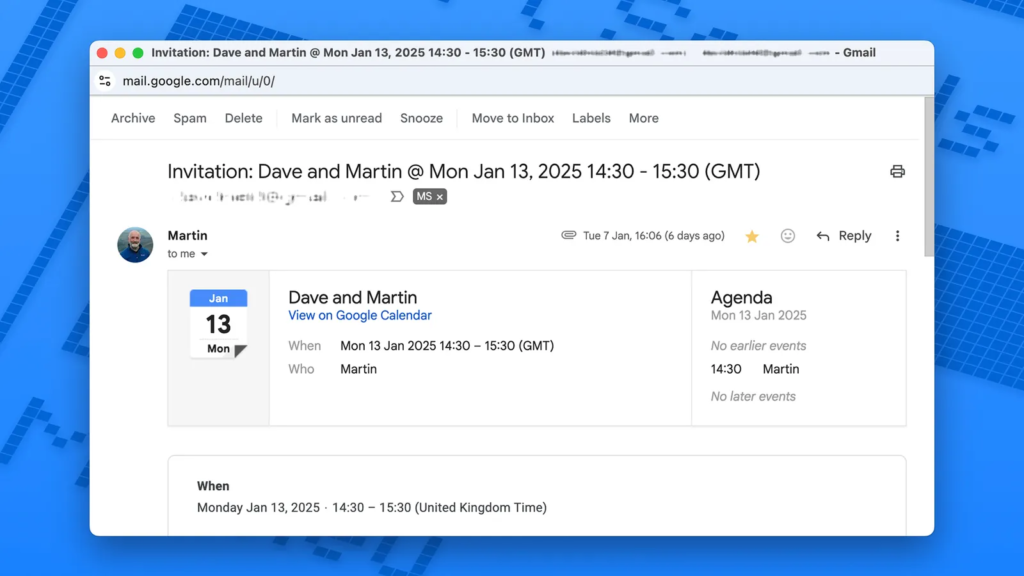
Google Calendar is a widely used tool for scheduling and managing daily tasks. However, cybercriminals have found new ways to exploit it, turning it into a potential gateway for malware and phishing scams. Recent reports indicate a rise in malicious activities where attackers use fake calendar invites to trick users into sharing personal information or clicking harmful links.

In this guide, we will break down how Google Calendar malware attacks work, the risks involved, and practical steps you can take to protect yourself.

How Google Calendar Malware Attacks Work

1. Phishing Scams Disguised as Calendar Invites

  • Cybercriminals send fake Google Calendar invitations containing malicious links.
  • These invites appear legitimate—they may use official-looking email addresses or pretend to be from trusted contacts.
  • Clicking on the embedded links redirects users to fake login pages or phishing sites designed to steal personal information.

2. Embedded Malware in Event Descriptions

  • Some hackers embed malicious code inside Google Calendar event descriptions.
  • Clicking on these links could install malware on your device, giving attackers access to sensitive information.

3. Fake Customer Support or Security Alerts

  • Scammers send fake Google Calendar invites posing as Google support or IT teams.
  • These events contain warnings like “Your account has been compromised” or “Update your security settings immediately.”
  • Victims are then lured into providing login credentials, which are stolen by hackers.

4. Remote Access Trojan (RAT) Attacks

  • In some cases, Google Calendar vulnerabilities have been exploited to install Remote Access Trojans (RATs).
  • These Trojans allow hackers to take control of your device remotely, accessing files, passwords, and even webcams.

Why Google Calendar Is a Target for Cybercriminals

Google Calendar is an integrated service that connects with Gmail, Google Drive, and other Google apps. This makes it a prime target for attackers looking to exploit its trust and accessibility.

Key Reasons Why Hackers Target Google Calendar:

Widespread Use – Millions rely on it daily, making it a high-value target.
Instant Sync Across Devices – Fake invites appear automatically on connected smartphones, tablets, and desktops.
Trusted Notifications – Users expect calendar notifications, making them less suspicious.

How to Stay Safe from Google Calendar Malware Attacks

1. Verify the Sender Before Accepting Any Invite

  • Always check the sender’s email address before clicking on a Google Calendar event.
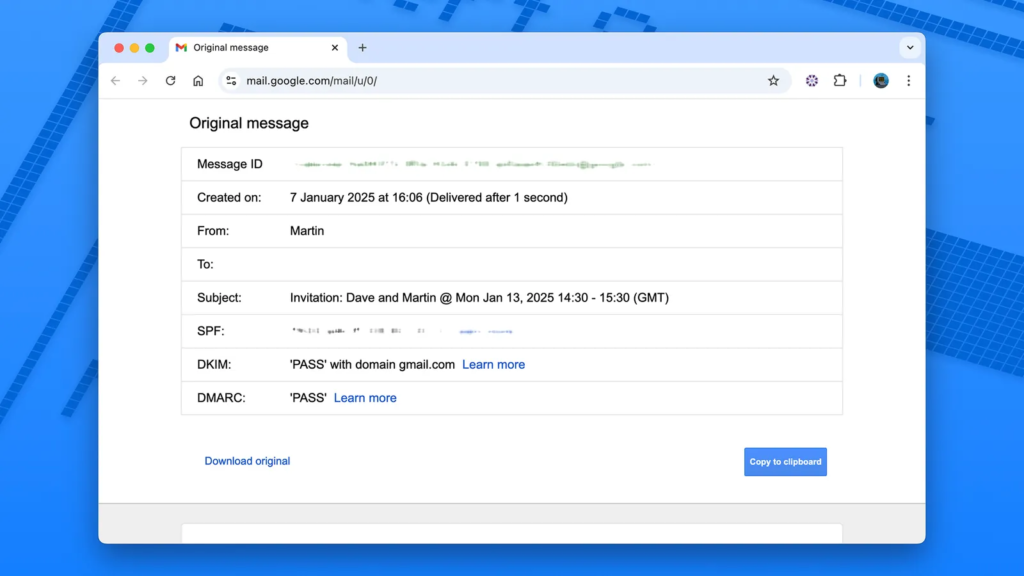
  • Legitimate Google invites will come from calendar-notification@google.com.

2. Avoid Clicking on Suspicious Links

  • If an event description contains unusual links, DO NOT CLICK.
  • Instead, hover over the link to preview the actual URL.

3. Turn Off Automatic Event Additions

By default, Google Calendar automatically adds invitations to your schedule—even from unknown senders. To prevent this:

  1. Open Google Calendar on your computer.
  2. Click on the gear icon (⚙️) in the top right and select Settings.
  3. Scroll to Event settings and find “Automatically add invitations.”
  4. Change it to “No, only show invitations to which I have responded.”

4. Enable Two-Factor Authentication (2FA)

  • Activating 2FA for your Google account adds an extra layer of security against unauthorized logins.
  • Go to Google Account > Security > 2-Step Verification and follow the setup instructions.

5. Regularly Review Connected Apps & Permissions

  1. Visit Google Security Checkup.
  2. Under “Third-party apps with account access”, revoke access to any unknown or suspicious apps.

6. Report & Delete Suspicious Invites

  • If you receive a spam calendar event, delete it immediately.
  • Click on the event > More actions > Report as spam.

7. Keep Google Calendar & Browser Updated

  • Google frequently releases security updates to patch vulnerabilities.
  • Make sure your browser (Chrome, Firefox, Edge) and Google Calendar app are always up to date.

What Google Is Doing to Improve Security

Google is aware of calendar-based phishing and malware attacks and has taken steps to strengthen security:
Enhanced spam filtering for Google Calendar invites.
Regular updates to patch security flaws.
Warning messages for suspicious events.

Despite these improvements, users must stay vigilant and take personal security precautions.

Final Thoughts: Stay Alert, Stay Safe

While Google Calendar is a powerful productivity tool, it’s important to recognize its potential security risks. Hackers are becoming more sophisticated, and malicious calendar invites are on the rise.

By following the best practices outlined in this guide—verifying event sources, disabling automatic event additions, enabling 2FA, and keeping your software updated—you can protect yourself from Google Calendar malware attacks.

Pro Tip: If something feels off about a calendar event, delete it immediately and report it to Google. Better safe than sorry!

Also Read: Google Unveils Car-Ready Apps Program in Android Auto 13.8 Update

Google Gemini Extensions Rebranded as ‘Apps’ and Enhanced with 2.0 Flash Thinking

Google has officially rebranded Gemini Extensions as “Apps” while also integrating them with Gemini 2.0 Flash Thinking, an advanced AI reasoning model aimed at improving performance and response accuracy. Although the core functionality remains unchanged, this update reflects Google’s ongoing efforts to streamline its AI ecosystem.

Additionally, Google Sheets is receiving an update that introduces a more efficient table formatting menu, making data organization easier for users. This article explores these changes and their implications for Gemini users.

What’s Changing in Google Gemini?

Google has made two key updates to its Gemini AI platform, affecting extensions and performance capabilities.

1. Extensions Are Now Called “Apps”

  • The Extensions menu in Gemini has been renamed to Apps across Android, iOS, and web versions.
  • The change does not affect the core functionality, meaning users can still access Gmail, Docs, Sheets, WhatsApp, Spotify, and other integrated services.
  • Google updated its support pages and documentation to reflect this change.

2. Powered by Gemini 2.0 Flash Thinking

  • The new AI reasoning model, Gemini 2.0 Flash Thinking, enhances performance for Gemini Apps.
  • Users can expect faster response times, improved context understanding, and enhanced task execution capabilities.
  • The update is available for both free and Gemini Advanced users.

3. Google Sheets Gets a Table Formatting Upgrade

  • A new formatting submenu in Google Sheets allows users to quickly access options like gridlines, alternating colors, condensed views, and footers.
  • This feature reduces the number of steps required for formatting, improving efficiency for data organization.

Why Did Google Rename Gemini Extensions?

Google frequently rebrands and restructures its products to create a more cohesive user experience. The decision to rename Extensions to Apps aligns with this approach and serves multiple purposes:

  • Simplifies AI integration by making Gemini’s capabilities feel more like built-in apps rather than add-ons.
  • Encourages wider adoption by using a familiar term that resonates with users.
  • Eliminates confusion with browser-based extensions, ensuring users understand that these are AI-powered tools within Gemini.

This change follows previous rebranding efforts, such as renaming Bard to Gemini, reflecting Google’s broader strategy to streamline AI offerings.

How These Updates Benefit Users

Faster and Smarter AI Assistance

  • Gemini 2.0 Flash Thinking enhances response speed and reasoning accuracy, leading to more precise answers and context-aware suggestions.

Seamless App Integration

  • Gemini Apps allow users to retrieve emails, generate documents, summarize messages, and interact with third-party services more efficiently.

Improved Productivity in Google Workspace

  • The Google Sheets table formatting update simplifies workflow by reducing the steps required for data organization.

Google’s AI Strategy: What’s Next?

As Google continues refining Gemini AI, several potential developments could follow:

  • Expanded third-party integrations beyond WhatsApp and Spotify.
  • Deeper automation in Google Workspace Apps for enhanced task management.
  • Further AI-driven refinements to improve personalization and efficiency.

Given Google’s history of rebrands and iterative updates, additional enhancements are expected in the coming months.

Final Thoughts

The renaming of Gemini Extensions to Apps might seem like a minor change, but it reflects Google’s larger goal of seamlessly integrating AI into everyday workflows. With the addition of Gemini 2.0 Flash Thinking, users can expect better performance, faster responses, and more intuitive AI interactions.

For those using Google Sheets, the new table formatting update further enhances productivity, demonstrating Google’s commitment to improving its ecosystem for both casual users and professionals.

With these updates, Google is positioning Gemini AI as an essential productivity tool, making it a more powerful competitor in the AI-driven assistant space.

Also Read: Google’s Find My Device App Gets a Major Redesign: New ‘People’ Tab, Live Location, and More


Frequently Asked Questions (FAQs)

What happened to Gemini Extensions?

Google has renamed Gemini Extensions to “Apps”, but their functionality remains unchanged.

What is Gemini 2.0 Flash Thinking?

It is an enhanced AI reasoning model that improves response speed, accuracy, and task execution for Gemini Apps.

Will this change how I use Gmail, Docs, or WhatsApp in Gemini?

No, the name change does not affect functionality. Users can still access all integrated services as before.

What improvements are coming to Google Sheets?

Google Sheets now includes a table formatting submenu, allowing users to quickly adjust gridlines, colors, and layouts.

Is Gemini 2.0 Flash Thinking available for free users?

Yes, both free and Gemini Advanced users benefit from the new AI-powered performance enhancements.

Google’s Find My Device App Gets a Major Redesign: New ‘People’ Tab, Live Location, and More

Google has rolled out a major redesign for its Find My Device app, introducing a two-tab interface, improved location previews, and live location sharing. This update significantly enhances the user experience, making it easier to track your devices and even share locations with friends and family.

With Find My Device v3.1.277, Google has integrated a new ‘People’ tab, allowing seamless location sharing via Google Maps. Additionally, users can now see their own live location when tracking a device, improving navigation and tracking efficiency.

Let’s take a closer look at the latest features, improvements, and why this update is a game-changer for Android users.

What’s New in Find My Device?

The latest Find My Device update brings several enhancements designed to make device tracking and location sharing more intuitive.

1. New Two-Tab UI for Better Navigation

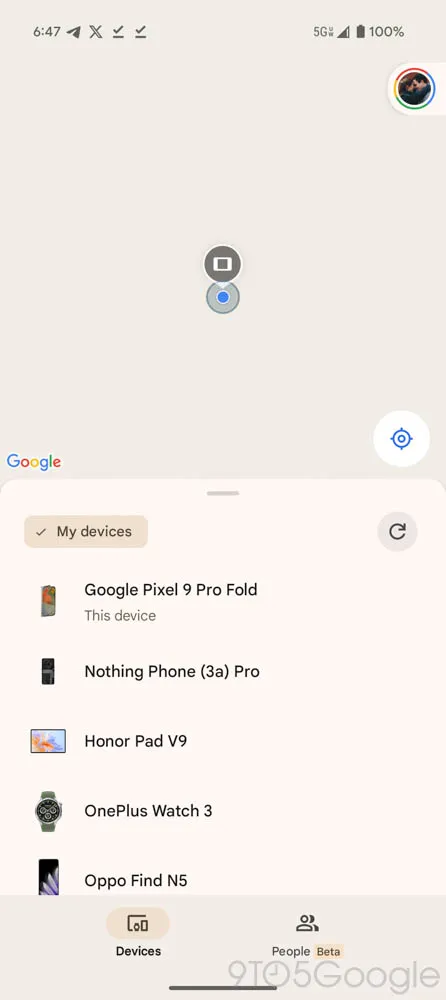
Google has redesigned the interface to feature two primary tabs:

Devices Tab – Displays all your linked devices and trackers, along with an improved location preview.
People Tab – A brand-new addition that allows users to see and share locations with others via Google Maps.

This new two-tab layout simplifies navigation and makes it easier to switch between tracking devices and sharing locations.

2. Introducing the ‘People’ Tab for Location Sharing

One of the biggest additions in this update is the ‘People’ tab, which enables location sharing similar to Google Maps.

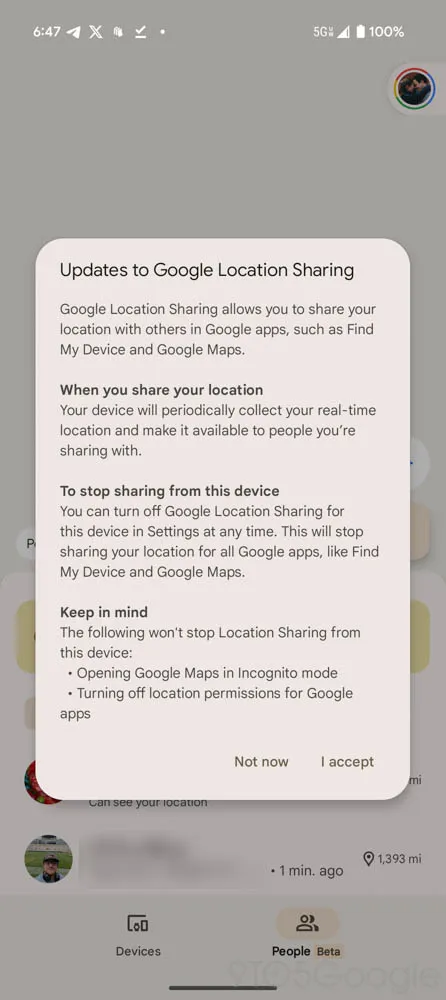
Share your live location via a direct link or through your Google account.
View the real-time locations of friends or family members who have shared their locations with you.
Fix location-sharing issues on new devices, ensuring your position is always accurately displayed.

Although this feature has existed in Google Maps, its integration into Find My Device makes tracking easier by combining it with device tracking.

3. Improved Location Previews for Devices

The Devices Tab has been upgraded to display:

A larger and more detailed location preview at the top of the screen.
A simplified list of devices and trackers at the bottom for quick access.

This layout ensures that location tracking starts immediately when the app opens, allowing users to find lost devices faster.

4. See Your Own Live Location While Tracking Devices

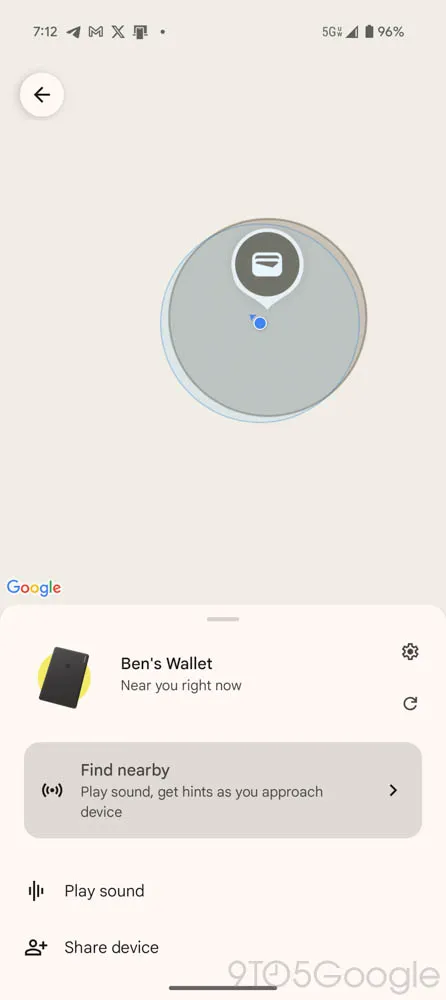
Previously, when searching for a device, Find My Device only showed the target device’s location. With this update, you can now:

See your own live location on the same map.
Compare your location to the lost device’s location for better navigation.
Avoid confusion when tracking close-range devices like smart tags and Bluetooth trackers.

This small yet powerful upgrade makes it much easier to locate misplaced devices in real time.

How These Features Improve the User Experience

✅ Easier Navigation with the Two-Tab System

The new layout removes clutter and simplifies tracking by dividing devices and people into separate tabs. Users no longer have to search through multiple menus to find what they need.

✅ Enhanced Location Sharing for Families and Friends

With the ‘People’ tab, users can now share their real-time location effortlessly, making it easier to coordinate meet-ups, track family members, or monitor children’s locations.

✅ Faster and More Accurate Device Tracking

The improved location preview and live location tracking help users quickly locate lost devices, reducing frustration and saving time.

Find My Device vs. Apple’s ‘Find My’ App: How Do They Compare?

Google’s latest updates to Find My Device make it more competitive with Apple’s Find My app. Here’s a comparison:

FeatureGoogle Find My DeviceApple Find My
Live Location Sharing✅ Yes (New ‘People’ Tab)✅ Yes
Device Location Preview✅ Yes (Bigger Map View)✅ Yes
Track Your Own Location✅ Yes (New Feature)❌ No
Customizable Notifications✅ Yes✅ Yes
Integration with Bluetooth Trackers✅ Yes (Google’s FMD Network)✅ Yes (Apple AirTags)

While Apple’s Find My is more established, Google’s latest redesign adds key features that bring it closer to its competitor—and even surpasses it in some areas, such as showing your own live location.

Potential Limitations and Future Updates

While this Find My Device update is a significant improvement, some limitations remain:

❌ What’s Missing?

  • No ability to reorder devices – The app still opens to the first device in the list, rather than letting users customize the order.
  • Limited rollout – The update isn’t widely available yet and is rolling out in phases.
  • No cross-platform support – Unlike Apple’s Find My, which works across all Apple devices, Google’s service is limited to Android.

🔧 What Could Improve in Future Updates?

Reordering devices – Allow users to prioritize frequently tracked devices.
Expanded tracker support – Support for third-party Bluetooth trackers.
More advanced notifications – Custom alerts for when a device leaves a set area.

Final Thoughts: A Major Step Forward for Android Users

Google’s Find My Device v3.1.277 is one of the biggest updates yet, bringing essential features like:

A new two-tab UI for easier navigation.
The ‘People’ tab for effortless location sharing.
Live location tracking while searching for devices.
A better, more functional device tracking system.

These changes streamline tracking, enhance location sharing, and make finding lost devices easier than ever. While some improvements are still needed, this update brings Find My Device closer to Apple’s Find My ecosystem and is a major win for Android users.

Also Read: How Small Businesses Can Beat Big Brands with SEO


Frequently Asked Questions (FAQs)

❓ What is the new ‘People’ tab in Find My Device?

The ‘People’ tab allows users to share their location in real time, similar to Google Maps location sharing.

❓ Can I track my live location while looking for another device?

Yes! Find My Device now shows your own live location, making it easier to compare it with your lost device’s location.

❓ Is this update available for all Android devices?

The update is rolling out gradually, so it may not be available for everyone yet.

❓ Can I change the order of my tracked devices?

No, Find My Device still doesn’t allow users to reorder their tracked devices, but this may change in future updates.

❓ How does this compare to Apple’s ‘Find My’ app?

Google’s Find My Device is now closer to Apple’s Find My, with features like location previews and real-time tracking. However, cross-platform support is still missing.

🚀 Get ready for a better tracking experience with Find My Device’s latest update! 📍

Google Starts Tracking All Your Devices as Chrome Changes – What You Need to Know

Google Chrome is making significant changes that will impact user privacy, tracking, and browsing habits. While the latest update promises to phase out third-party tracking cookies—a long-awaited move—it also introduces a new form of tracking that raises concerns.

The new update suggests that Google will track users across all their devices using account-based tracking, a shift that could redefine how user data is collected and managed. While some see this as a step toward greater transparency, others worry about increased surveillance and potential privacy risks.

The End of Third-Party Cookies—But at What Cost?

For years, privacy advocates have pushed for Google to eliminate third-party cookies, which track users across different websites. Chrome’s latest update introduces a “global prompt” that will allow users to opt out of tracking, similar to Apple’s App Tracking Transparency (ATT) feature.

However, while third-party cookies are being phased out, Google is shifting toward first-party tracking through its ecosystem, meaning your activity across all Google services—Chrome, YouTube, Search, Gmail—will be closely monitored.

What Does This Mean for You?

  • Better privacy from external advertisers but greater data collection by Google itself.
  • Account-based tracking, meaning Google can link your browsing activity across devices, even if you clear cookies.
  • More personalized ads—but at the cost of deeper surveillance of user behavior.

New Google Tracking: How It Works

The key change in Chrome’s update is that Google will track users based on their logged-in Google accounts, rather than using cookies stored on individual devices. This means:

  • Your browsing data is linked across all devices where you’re logged into Google.
  • Even if you clear your browser history or use incognito mode, your data may still be tied to your account.
  • Google’s AI-powered ad personalization system will continue to refine and target ads based on your behavior.

Why This Matters

Previously, advertisers relied on third-party cookies to track users, but with Google shifting to first-party tracking, the company retains a competitive advantage over smaller ad networks that depend on cookie-based tracking.

This move also means regulators may scrutinize Google’s ad dominance, as it consolidates data within its ecosystem.

Privacy Concerns & User Backlash

While Google frames these changes as a privacy-friendly upgrade, critics argue that it reinforces Google’s control over digital advertising and limits user autonomy.

Major Concerns:

  1. Users Can’t Fully Escape Tracking
    • Even if you disable cookies, Google’s account-based tracking will still link data across Chrome, Android, and other Google services.
  2. Incognito Mode Isn’t Truly Private
    • Google has faced lawsuits over data collection in Incognito Mode, and these new changes may further limit true private browsing.
  3. More Power to Google’s Ad Business
    • With third-party cookies gone, Google’s own ad platform becomes the primary player, potentially sidelining independent advertisers.
  4. Regulatory & Legal Scrutiny
    • Governments and regulators may see this as an anti-competitive move, leading to investigations and possible legal action.

How to Protect Your Privacy on Chrome

If you’re concerned about these changes, here’s what you can do to limit Google’s tracking:

  1. Use Privacy-Focused Browsers
    • Switch to Firefox, Brave, or DuckDuckGo for better privacy protection.
  2. Adjust Your Google Account Settings
    • Go to Google’s Privacy Controls and disable activity tracking.
  3. Use a VPN
    • A VPN (Virtual Private Network) can mask your browsing activity from Google and other trackers.
  4. Log Out of Google When Browsing
    • Avoid staying logged into your Google account while using Chrome.
  5. Try Search Engine Alternatives
    • Use DuckDuckGo or Startpage instead of Google Search for less tracking.

Final Thoughts

Google’s latest Chrome update signals a major shift in internet privacy. While third-party cookies are being removed, Google’s first-party tracking could make it harder to avoid surveillance across devices.

For users, this means weighing convenience versus privacy. If you’re comfortable with Google tracking your activity for a more personalized experience, you may not mind. But if you value online anonymity, you might want to explore alternative browsers, search engines, and privacy settings.

The question remains: Is Google truly prioritizing user privacy, or is this just another way to strengthen its advertising dominance? Only time will tell.

Also Read: Facebook’s Big Change: A New Name Coming Soon?

Google’s Gemini Advanced Gets Major AI Upgrades – What’s New?

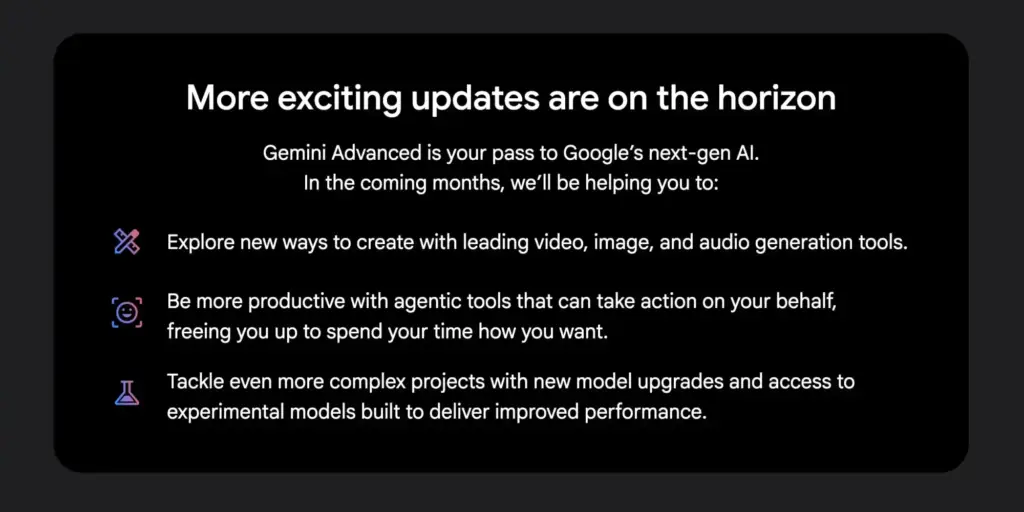
Google has recently teased significant updates for its Gemini Advanced subscription, revealing what’s coming in the next few months. These updates aim to improve AI capabilities, content generation, and productivity tools for users.

Let’s explore what’s new in Gemini Advanced and how these changes will impact users.

What Is Gemini Advanced?

Gemini Advanced is Google’s premium AI service, available for $19.99 per month under the Google AI Premium Plan. It provides access to cutting-edge AI models, enabling advanced reasoning, coding, and content generation.

Google’s latest newsletter to Gemini Advanced subscribers hints at a series of powerful updates that will enhance user experience across different domains.

Upcoming Features and Enhancements

1. New AI Models: Improved Accuracy & Transparency

Google is rolling out two experimental AI models to enhance reasoning, accuracy, and transparency:

  • Gemini 2.0 Pro Experimental: This model is optimized for handling complex tasks with improved factual accuracy, making it ideal for coding, mathematical problem-solving, and research-based queries.
  • Gemini 2.0 Flash Thinking: Unlike traditional models, Flash Thinking will display its reasoning process in real time, allowing users to trace AI-generated responses step by step.

These advancements are designed to improve reliability and make AI more transparent and accountable.

2. Expanded AI-Generated Content: Video, Image, and Audio

Google has confirmed that Gemini Advanced users will soon have access to enhanced video, image, and audio generation tools.

  • Imagen 3: Google’s advanced image-generation model, capable of creating hyper-realistic visuals, will see further refinements.
  • Veo 2: A high-quality AI video generation tool, currently in testing under Google Labs, may become widely available for Gemini Advanced subscribers.
  • MusicLM and Lyria: These AI tools specialize in music and audio generation, potentially allowing users to create original music compositions and soundtracks.

With these expanded creative tools, users will have more flexibility in multimedia content creation, making Gemini a serious competitor to platforms like OpenAI’s DALL·E and Midjourney.

3. AI Agent Tools: Automating Tasks Like Never Before

One of the most exciting updates involves agentic AI tools that will take action on behalf of users to automate workflows.

  • Project Mariner: Expected to integrate with Google Workspace, this AI-powered assistant will help users organize email attachments, generate Google Sheets, and analyze data with AI-powered insights.
  • Automated AI Assistants: Gemini Advanced will be able to autonomously complete routine tasks, freeing up users’ time and increasing productivity.

These AI agents could revolutionize office work, helping professionals manage tasks seamlessly across Google’s ecosystem.

4. Advanced AI Models for Complex Projects

Google has also hinted at continuous improvements to Gemini’s core models, providing:

  • Faster processing speeds
  • Greater contextual understanding
  • More efficient multitasking capabilities

As part of this evolution, Gemini 2.0 Pro will eventually become the default model for Advanced subscribers, bringing more power and accuracy to everyday AI interactions.

What This Means for Gemini Users

With these updates, Google is positioning Gemini as a top-tier AI platform, competing directly with OpenAI’s ChatGPT-4, Anthropic’s Claude, and Meta’s AI models.

For content creators, business professionals, and developers, Gemini Advanced will offer:
✅ More powerful AI reasoning and fact-checking
✅ Expanded creative tools for video, image, and music generation
✅ Smarter automation for office productivity
✅ Faster and more transparent AI responses

These features make Gemini Advanced a must-have for users who want cutting-edge AI capabilities.

Conclusion: Is Gemini Advanced Worth It?

With the latest updates, Google is pushing AI boundaries by expanding Gemini’s capabilities in creativity, productivity, and automation. The upcoming features could make Gemini Advanced one of the most comprehensive AI subscriptions available.

For those already subscribed, this is an exciting glimpse into the future of Google’s AI ecosystem. For those considering it, these powerful upgrades might make Gemini Advanced worth the investment.

💡 Would you subscribe to Gemini Advanced for these new features? Let us know in the comments! 🚀

Also Read: Google Search Testing Background Section


FAQs

1. What is Gemini Advanced?

Gemini Advanced is Google’s premium AI subscription that offers access to its most powerful AI models, including Gemini 2.0 Pro and Flash Thinking. It costs $19.99/month under the Google AI Premium Plan.

2. What’s new in Gemini Advanced?

Some major updates include:
Longer, more detailed AI responses
New AI-generated video, image, and music tools
AI-powered workflow automation
Enhanced transparency with Flash Thinking AI

3. How does Gemini Advanced compare to ChatGPT-4?

Gemini Advanced focuses on real-time AI reasoning, agentic automation, and expanded multimedia generation, making it a strong competitor to OpenAI’s ChatGPT-4.

4. When will these new features roll out?

Google has teased that the updates will roll out over the next few months, though some features, like Veo 2 and MusicLM, are still in limited beta testing.

5. Where can I subscribe to Gemini Advanced?

You can subscribe via the Google One Premium AI Plan for $19.99/month through the Google Gemini app.

Google Search Testing Background Section

Google is continuously evolving its search experience to provide users with more relevant and comprehensive information. One of its latest experiments involves the introduction of a “Background” section in search results. This new feature aims to offer additional context on trending topics by aggregating key articles from authoritative sources.

What is the “Background” Section?

The “Background” section is a newly tested feature that appears within Google Search results. It curates relevant articles that provide in-depth insights, historical context, and analysis on a particular search topic. The feature is particularly useful for trending searches where users seek a well-rounded understanding of the subject.

Key Characteristics of the Background Section:

  • Found within Google Search results under specific queries.
  • Displays articles from reputable publishers such as Forbes, CNN, and Tom’s Guide.
  • Aims to provide historical context and additional information beyond basic search snippets.
  • Currently in the testing phase and not widely rolled out.

How It Works

When users search for a topic that Google deems relevant for additional context, a “Background” section may appear within the search results. This section contains links to in-depth articles that explain the subject from multiple angles. For example, searching for “iPhone SE 4” might show background articles discussing its release timeline, features, and comparison to previous models.

Google appears to be using this feature to surface valuable content that goes beyond real-time updates. Instead of just showing the latest news, the “Background” section presents well-researched articles that help users develop a deeper understanding of a subject.

Potential Impact on Search Experience

The introduction of the Background section can significantly influence how users interact with search results:

Benefits for Users

  • More Context: Users receive in-depth information rather than just real-time updates.
  • Trusted Sources: Google appears to prioritize reputable sources, reducing misinformation.
  • Better Understanding: Instead of clicking through multiple links, users can access summarized insights in one place.

Impact on SEO & Digital Publishers

  • Traffic Distribution: Publishers featured in the Background section may see increased organic traffic.
  • Content Quality Emphasis: Sites producing in-depth, research-backed content may benefit from improved visibility.
  • Competitive Advantage: Websites included in this feature gain credibility and authority.

Similar Features in Google Search

Google has been experimenting with similar enhancements in recent months:

  1. “For Context” Feature – Found in Google News, providing background information on breaking news.
  2. “Perspectives” Section – Highlighting diverse viewpoints from blogs, forums, and social media.
  3. AI-Generated Summaries – Experimenting with AI-driven search results to provide quick overviews.

These features demonstrate Google’s push toward enhancing user experience by offering comprehensive, reliable, and structured information.

Future Implications

While still in the experimental phase, the Background section could reshape how information is consumed in Google Search. If successfully rolled out, it may:

  • Become a standard feature for major news topics and tech releases.
  • Influence SEO strategies, as in-depth content gains more priority.
  • Shift how users engage with search results, encouraging longer dwell times and better-informed decision-making.

Conclusion

Google’s Background section is an innovative step toward making search results more informative and user-friendly. By providing additional context through reputable sources, Google enhances the search experience and empowers users with well-rounded knowledge. While its full rollout remains uncertain, this feature signifies Google’s ongoing efforts to prioritize quality content and improve search relevance.

Stay Updated

As Google continues refining this feature, publishers and SEO professionals should focus on creating high-value, research-driven content to stay competitive in the evolving search landscape. 🚀

Also Read: Google Stays on Top in AI as China’s DeepSeek Gains Attention